Go to settings
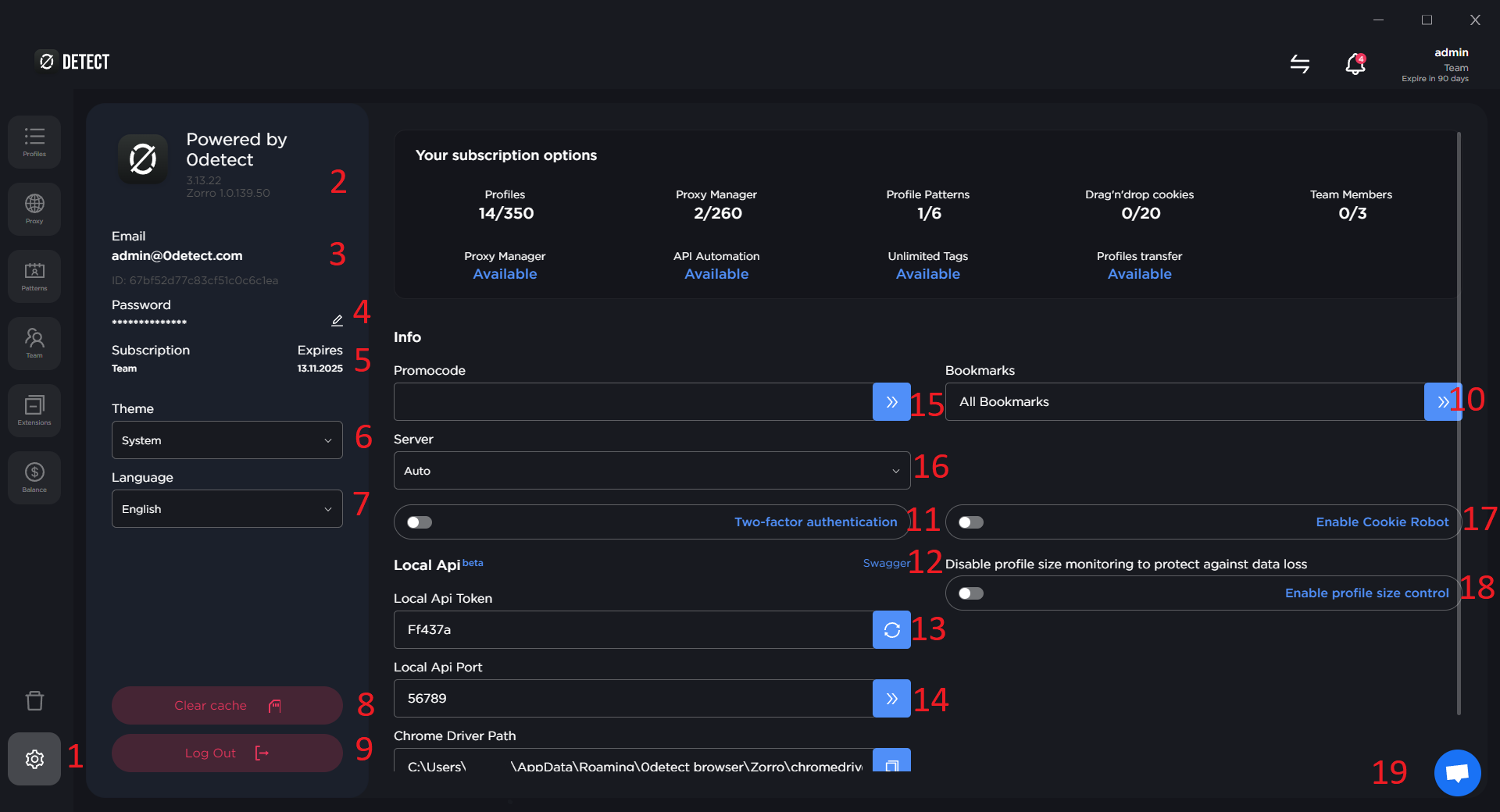
To go to settings, tap on the gear (Item 1 in the image) in the lower left corner of the app.
Product version
Item 2 displays the client and browser version.
E-Mail and Id
Item 3 displays your e-mail address and id.
Password change
To change the password, click the corresponding button next to the password (item 4 in the image) and enter the new password. If necessary, check the box next to «Stop active sessions on other devices after changing the password. Stopping active sessions will also stop running profiles associated with those sessions, which may result in data loss» and confirm.
Subscription
In step 5, the image shows the date of expiration of the subscription.
Theme
To select a visual design, click on item 6, and select the appropriate theme.
Language
Click on the drop-down list in step 7 and select the appropriate language.
Clearing the cache
If you want to clear the application cache, click the button on item 8.
Logging out of the account
To sign out of your account, click «Log Out» (item 9 in the image).
Bookmarks
To add, modify and delete bookmarks, click on item 10.
Two-phase authentication
To enable two-factor authentication, press the corresponding switch. After enabling the function, after entering your mail and password, you will receive a one-time code to log in to the application.
Local api (Swagger)
Clicking on item 12 will cause the api documentation to open for familiarization, and build the process automation work (the switch at the bottom of the settings must be active).
Local api port
To change the Local api access port, enter the desired (free on your device) port.
Promocode
To apply the promocode, paste it into the appropriate field, and click the button on item 15.
Server
Server selection is automatic. For faster operation, the server closest to you is selected. If you have difficulty accessing the current server, change the server manually by clicking on the drop-down menu.
Cookie Robot
To activate Cookie Robot, click on the corresponding switch.
Disabling profile size control
If you are experiencing a problem with saving data after closing your profile, disabling this feature may solve the problem. Check with support in advance to see if you really need to disable it. The cause of the problem may be in the user's job specification.
Support
To contact support, click on item 19.